
Who has finished, and who is missing?
One overview that goes from the whole company down to a single employee.
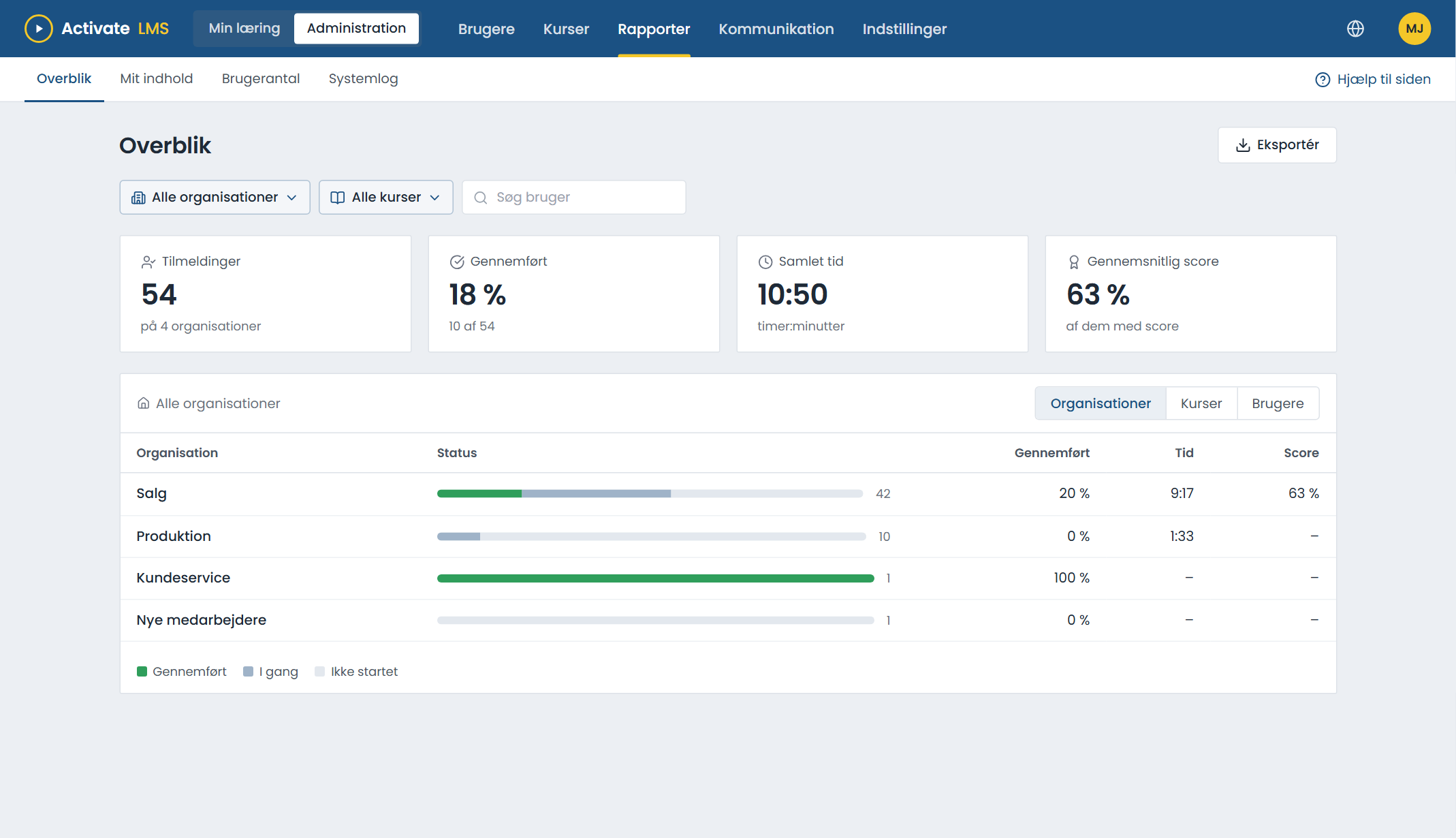
Four reports
Overview
Enrolments, completion, time and score. Choose organisations and courses, and drill down into an organisation, course or user with one click.
My content
The owner of a course can follow it across organisations, also without being an administrator.
User count
How many active users you have, and how the number develops.
System log
Which emails have been sent, who changed what, and which enrolments the system made itself.
Each manager sees their own people
The reports only show what each person is allowed to see. The manager of Production sees Production, and the administrator sees everything.
- The same permissions as in the rest of the LMS.
- Export to a spreadsheet with the filters you have chosen.
- Classroom courses and e-learning in the same report.
About reports
Can we document that everyone has completed a course?
Yes. Choose the course, see the status for each employee, and export the list. The system log also shows when the course was assigned.
What can you see in the reports?
The status for each employee (not started, in progress, completed, passed or failed), score, time spent and since when. For e-learning, also the employees' answers to the questions.
How up to date are the figures?
The reports are stored for a few minutes so they load quickly. The Refresh button fetches the latest figures straight away.
Can the AI assistant explain a report?
Yes. Our AI assistant can, for example, explain why an employee is shown as not completed, or why they have been given a course.
See your own figures
A trial organisation has demo courses and sample data, so the reports have something to show from the start.